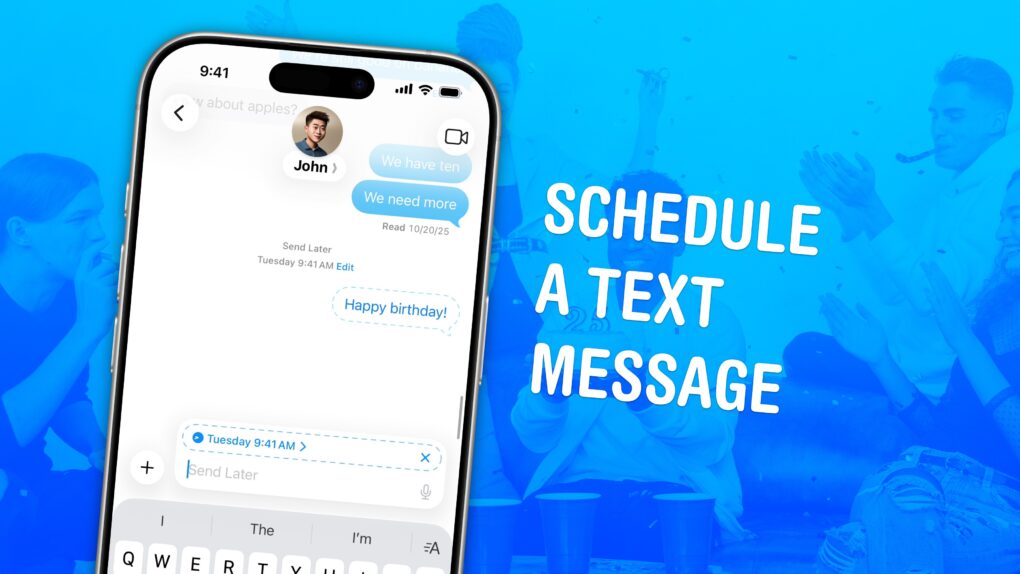
If you know how to schedule texts on iPhone, you can make sure you never forget to send a reminder, birthday greeting or early morning message for someone in a different time zone. You can schedule a whole slew of texts up to a week in advance, with links, photos, attachments and more, using the iPhone’s Send Later feature.
This can save your bacon if you’re the type of person who forgets to text someone later. And it’s really easy to do, once you figure out how to use the somewhat hidden feature.
How to schedule texts on iPhone in Messages app
When I first tried the updated Messages app in iOS 18, the Send Later feature became an instant favorite. If someone asks you to remind them of something in the future — but you struggle to remember such things — you can schedule your reminder text.
Here’s how to use one of the top features in Messages to schedule messages to be sent later.

EssayService: Your academic lifesaver
EssayService.com is a trusted essay helper, offering tailored, plagiarism-free essays crafted by expert writers. With a user-friendly interface, 24/7 support and a focus on delivering high-quality work, it’s a top choice for students seeking reliable academic assistance.Table of contents: How to schedule a text message on iPhone
- Open Send Later from the Messages app
- Pick a date and time, then schedule your text message
- Edit, reschedule or delete a scheduled message
Open ‘Send Later’ from the apps menu
Screenshot: D. Griffin Jones/Cult of Mac
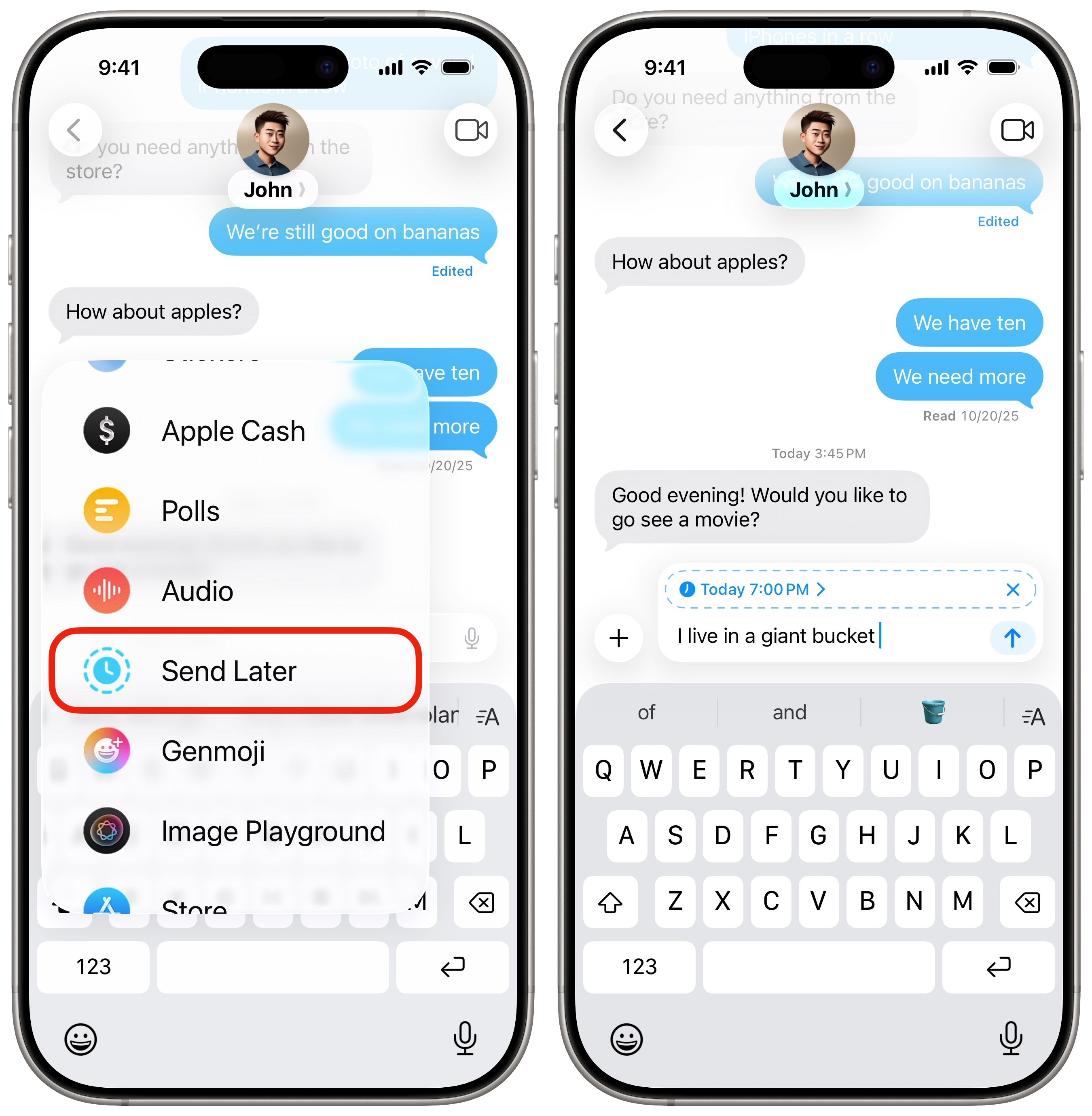
Here’s how you schedule texts on iPhone — it’s really quite easy if you know where to look. First, open the Messages app and tap on a conversation thread. Hit the + button on the left, then scroll down and tap Send Later.
Pick a date and time to schedule your text message on iPhone
You can type in whatever message you want, adding links, images and attachments. Tap the schedule button above the text box to set a date and time. You can schedule messages up to a week in advance. Once you set the time, tap the send button to schedule your message.
You can continue texting to string together a group of scheduled text messages. To get back to replying in real time, tap the × to close the Send Later box.
Edit, reschedule or delete a scheduled text message on iPhone
Screenshot: D. Griffin Jones/Cult of Mac
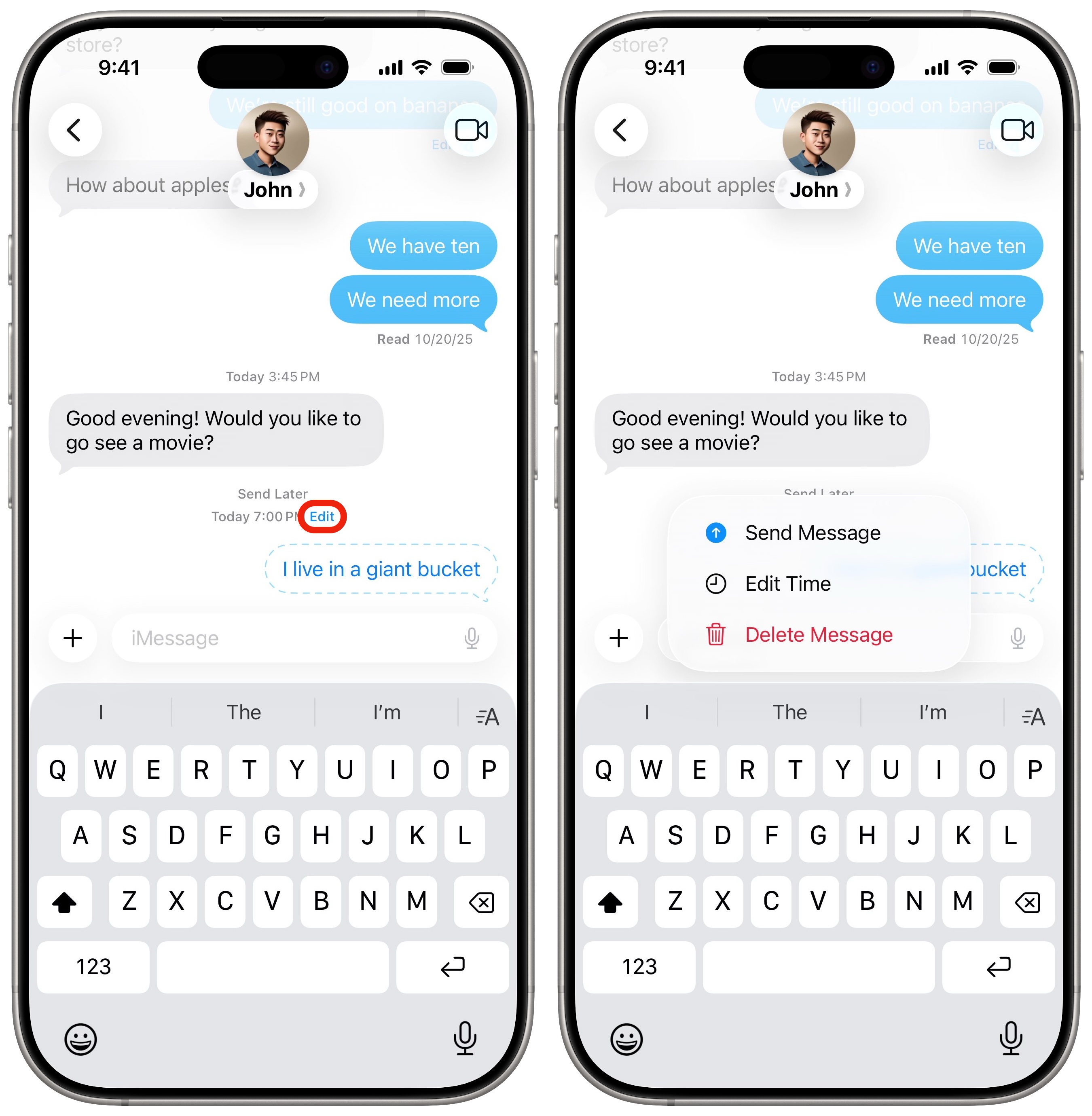
You can see all your scheduled texts by scrolling down on your iPhone, below the current conversation. Tap Edit for a few options:
- Send Message will send your scheduled message immediately, instead of at the scheduled time.
- Edit Time lets you change when your message will go out.
- Delete Message will delete your scheduled message entirely.
To edit the text of the message itself, tap and hold on the bubble and tap Edit. Unlike editing text messages after they’re sent, you can perform an unlimited number of edits on your scheduled message. The person receiving the message will not see the edit history, either.
More features in Messages
- Edit or unsend messages, soon after sending them, if you make a mistake.
- iMessage effects can add much more meaning, emotion and fun to your texting. You can add bold, italics, underline and
strikethroughtext, just like a formatted document, and even choose from a bunch of cool, animated effects. - Check In is an iPhone feature that tracks your travels and lets contacts know when you’ve safely reached your destination.
- RCS messaging makes features like read receipts, video and file attachments and named group chats — previously exclusive to iMessage (and some apps) — possible between iPhone and Android.
- Scheduled automatic Apple Cash payments to send money to your friends or family on a regular basis.
We originally published this article on how to schedule texts on iPhone on January 30, 2025. We updated it with the latest information on June 26, 2025, and April 22, 2026.

D. Griffin Jones is a writer, podcaster and video producer for Cult of Mac. Griffin has been a passionate computer enthusiast since 2002, when he got his first PC — but since getting a Mac in 2008, he hasn’t turned back. His skills in graphic and web design, along with video and podcast editing, are self-taught over 20+ years. Griffin has a bachelor’s degree in computer science and has written several (unpublished) apps for Mac and iOS. His collection of old computers is made up of 40+ desktops, laptops, PDAs and devices, dating back to the early ’80s. He brings all of these creative and technical skills, along with a deep knowledge of Apple history, into his work for Cult of Mac.

